Pages

Jul 19, 2011

SharePoint 2010 debugging

In order to enable debugging in SharePoint 2010 we need to made a few changes to the web.config file.
Replace
<SafeMode MaxControls="200" CallStack="false" DirectFileDependencies="10"TotalFileDependencies="50" AllowPageLevelTrace="false">
with
<SafeMode MaxControls="200" CallStack="true" DirectFileDependencies="10"TotalFileDependencies="50" AllowPageLevelTrace="false">
Replace
<customErrors mode="On" />
with
<customErrors mode="Off" />
Replace
<compilation batch="false" debug="false">
with
<compilation batch="false" debug="true">
This will turn an exception looking like this
SharePoint error no debug
into this
SharePoint Exception

Redirecting to Access Denied Page

If you want to follow the same behavior as SharePoint in your custom web parts, if the user does not meet the security criteria for the current page you should redirect to Access Denied Page.
In order to achieve that you can use HandleAccessDenied method of SPSecurity.
The code bellow shows how to use HandleAccessDenied to redirect to Access Denied Page:
SPUtility.HandleAccessDenied(new Exception("You are not authorized to perform this operation."));

pri

SharePoint 2010 Governance Planning and Implementation

Why do you need a Governance Plan?
  • Scott indicated that 20% of a successful solution implementation is about Technology, but about 95% of the Governance documentation is about Technology.  We need to be prepared for the other 80%.
  • Users need to be trained appropriately before being empowered with the control of the system.
    • People do not treat SharePoint like an Enterprise Application
    • Letting users add unlimited items to a list – can kill the server
    • Not Planning for scale and growth
    • Users can do a lot – we give them “great power” and need to ensure they accept their “great responsibility”
    • Many of SharePoint’s capabilities are not required or mandated, so if you mess it up, there is a work around for them (e.g. they will collaborate through email if you don’t get SharePoint collaboration correct).
What Does Governance mean in the context of SharePoint?
  • Your Governance Plan defines people roles, technology and policy guidelines and process to resolve ambiguity.
    • People – Define clear roles and responsibilities
    • Technology – Define policies for service levels and appropriate use
    • Policy – Articulate design and usage principles
      • In 2010, how will people feel if they give someone a rating of 1 (out of 5) for someone else’s document
  • Process – For example provisioning a site
Define a Vision – Don’t think about requirements from the start, but instead, talk about the “outcomes” (what are you trying to achieve).  Requirements can be derived from the desired outcome.  The Governance Plan will help support the Vision
People Roles
  • Get the right people in place (MOSS introduced many new roles that were required, but most organizations didn’t assign people to these roles.  Take the rollout of SharePoint 2010 as an opportunity to get people assigned to these roles. Most of these roles are NOT full time, and one person can fill more than one role.)
    • Executive Sponsor
    • Governance Board / Steering Committee
    • Business Owner
    • Solution Administrator
    • Technology Support Team
    • Site Sponsor / Owner
    • Site Steward
    • User
    • The management of Enterprise Corporate Taxonomy in SharePoint 2010 will need to have an owner (even though other may be allowed to update the data).
Governance Model – An Overview of the Governance Model created by Microsoft was presented.
Guiding Principles
  • Publish Once, Link Many
  • No Email attachments – Send links
  • In 2007 Use Metadata not folders – In 2010 Use Folders to inherit metadata.
    • NOTE The concept of using folders in SharePoint 2010 is a paradigm shift that IT and end users will need to understand and utilize.
    • Content management is everyone’s responsibility but site owners are accountable
Tactics for Successful Roll-out and Strategy
  • Fun and engaging launch event
    • Example, Birth announcement of SharePoint, Scavenger Hunt for content within the site
    • Lunch-n-learns
    • Power Users Community of Practice – Power users teach others
Content Management Plan – Is changing a column on a list code or content?  Who is allowed to make these changes?  Is SharePoint Designer workflow code or content?  There will be even more decisions like this to be made with the rollout of SharePoint 2010.
Governance Plan Document
  • Break documents into chunks
    • Vision
    • Roles and Responsibilities
    • Guiding Principles
    • Policies
    • Guidelines/Best Practices
    • Procedures
    • Do not include
      • Implementation Details
      • Network Requirements
      • Feature Requirements
Tip: The actual “process” of creating the document is more important than the actual document itself.  Make sure to include Human Resources (e.g. what can people post on blogs, put on their MySite, etc.).  Everyone wants SharePoint, but no one wants to take responsibility for it.  So the actual process, of arriving at decisions is the most important part.
Governance Details for SharePoint 2010
  • Social Computing Implications
    • Rating of documents (especially a low rating) may cause people to shy away from loading documents.  Note that changing the wording of the rankings may be able to help in this regard.
    • MySites – Posting information that people will judge you on within the organization, or you may shy away
  • Managed Metadata
    • Managed Keyword vs. Managed Term
      • Managed Keywords – Allow users to key in phrases or key words (that have edit rights) on an item – they can type in whatever they want. 
      • Managed Terms – Based off of the master hierarchy/taxonomy values
      • Social Tags – Even though you do not have edit rights to this content, anyone can “socially tag” this content
      • NOTE: The distinction of these terms is confusing and will need to be better understood by the SharePoint owners, so that it can be explained to end users, and what access an end user will be able to utilize.
  • Records Management
    • In-Place Records vs. Records Archive
      • Organizations will probably use both
  • Resource Governor
    • More than 5,000 items in list, SharePoint won’t return
    • Need to communicate / educate users about this
  • Content Organizer
    • Used to partition/route documents based on metadata
    • Need to communicate / educate users where their documents are going
  • SharePoint Customizations
    • SharePoint Designer – On or Off
    • SODA – SharePoint On-Demand Applications
    • Excel and Access Solutions – Turn this on or off?
    • Sandbox Solutions

Jun 24, 2011

Sharepoint 2007 Calendar Color Coding.

For color coding refer to blog . But for further enhancements see below information.


J-query refer it from you document library.


<script src="/Documents/jquery-1.3.2.min.js" type="text/javascript"></script>
<script type="text/javascript">
$(document).ready(function()
{
//setting the row width for each and every bloc
$("td.ms-cal-monthitem").each(function()
{
var row1 = $("td.ms-cal-monthitem").parent();
var table1 =row1.parent().parent();
 table1.width('100%');
});
//hiding the time
$("td.ms-cal-monthitem").each(function()
{

if( $(this).html().indexOf('<NOBR') != -1)
  {
    var left = $(this).html().indexOf('<NOBR');
    var right = $(this).html().indexOf('</NOBR>')
    var string = $(this).html().substring(left,right+7);
     var calHTML =$(this).html();
    var newHTML = calHTML.replace(string,'');
   $(this).html(newHTML);
     }
});
});</script>

Jun 21, 2011

.Net 4.0 Advance Training.....!

Today i went to inhouse training on the  below topics. But as a SharePoint Developer not sure where to inject this topics (except WWF).....?


Topic
Code Contracts
Design-Time-Only Interop Assemblies
Dynamic Language Runtime
Covariance and Contravariance in Generics
BigInteger and Complex Numbers
Tuples
Memory-Mapped Files
Managed Extensibility Framework
Parallel Computing
WWF

Jun 20, 2011

Claims Based Authentication using ADFS 2.0


SharePoint 2010 has made available a very useful type of authentication called Claims based Authentication. You can have a custom identity provider and make your web application use that identity provider in the places of default Windows Authentication. You can also make it use multiple authentication providers. Following are the steps to be followed for configuring a SharePoint 2010 web application to use Claims Based Authentication.
I will use ADFS 2.0 to authenticate users in my domain instead of Windows Authentication. 

INSTALL AND CONFIGURE ADFS 2.0

  1. Install ADFS 2.0 on the server which can authenticate the users.
  2. Run the ADFS configuration wizard.
  3. Select create new federation server if you are using this for testing or else select the appropriate option.
  4. If you plan to use more than one ADFS select New Federation Server Farm else select Stand Alone Server. Click Next
  5. The wizard automatically picks up a certificate. If it show any error. Go to IIS manager and create a certificate with Fully Qualified Domain Name (FQDN) and run the wizard again.
  6. Give the credentials for the service account and click next.

CREATE RELYING PARTY TRUST.

  1. Open the ADFS 2.0 management console and expand on Trust Relations
  2. Select Relying Party Trust
  3. Click on Add Relying Party trust.
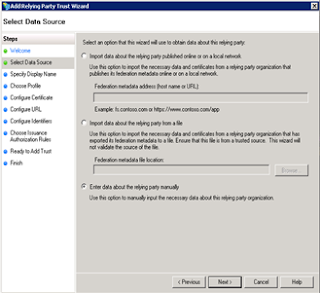
  4. Select enter data about relying party manually.
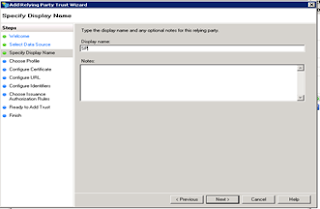
6. Select ADFS 2.0 profile and click next.
7. Selecting a certificate for encryption is optional. Click next.
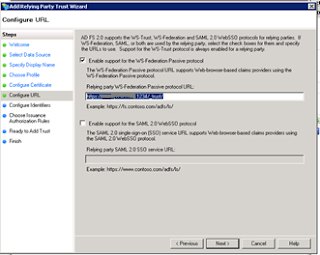
8. Select Enable support for WS-Federation Passive Protocol. Give the url of your web application with /_trust/ at the end
Example (https://servername:port/_trust/)
Note: Do not forget to give the slash “/” at the end after trust (/_trust/)
              9. Click next


  1. Do not add any identifiers. Click next.
  2. Select permit all users to access this relying party. Click next.
  3. Verify the configuration and click next at the following screen.
  4. Leave the check box “Open the edit claim rules dialog…” and click on Close.
  5. Then click on Add rules.
     15. Select the claim rule template as “Send LDAP attributes as claims” 
     16. Give a name for the claim rule. Select Active Directory as attribute store. 
    Click on the dropdown and select SAM Account Name in the LDAP attribute 
    Select E-Mail address as the outgoing claim type. 
    In the next row select Token Groups – Unqualified Names as LDAP attribute 
    Select Role as the outgoing claim type.

    EXPORT CERTIFICATE

    1. Open ADFS 2.0 management console.
    2. Expand Service and select Certificates.
    3. Right click on Token Signing Certificate and select view certificate.
    4. In the Certificate windows select Details tab and click on copy to file.


    1. In the Certificate Export wizard click next.
    2. Select DER encoded binary X.509 and click next.
    3. Give a location where you want to save the exported certificate.
    4. Click on finish.
    5. Copy this certificate to the server where the SharePoint server is installed.
    6. Central Admin-> Security -> Manage Trust and click New
    7. Upload the token signing certificate which you copied from the ADFS server.

      Configure a Claims-based Web application

      THE CONFIGURATION OF A CLAIMS-BASED SHAREPOINT WEB APPLICATION CAN BE ACHIEVED USING WINDOWS POWERSHELL. THE STEPS TO BE FOLLOWED ARE AS FOLLOWS


      1. From the Windows Power Shell command prompt (PS C:\>), create an x509Certificate2 object using the following code:
      $cert = New-Object System.Security.Cryptography.X509Certificates.X509Certificate2("path to cert file")
      1. Create a claim type mapping to use in your trusted authentication provider using the following code
      New-SPClaimTypeMapping "http://schemas.xmlsoap.org/ws/2005/05/identity/claims/emailaddress"-IncomingClaimTypeDisplayName "EmailAddress" –SameAsIncoming
      1. Create a trusted login provider by first creating a value for the realm parameter using the following code
      $realm = "https://serevrname:port/_trust/"
      1. Create a value for the signinurl parameter that points to the Security Token Service Web application using the following code
      $signinurl = "https://sysname/adfs/ls/”
      1. Create the trusted login provider, using the same IdentifierClaim value as in a claim mapping ($map1.InputClaimType) using the following code.
      $ap = New-SPTrustedIdentityTokenIssuer –Name "ClaimsProvider" -Description "My Custom Identity Provider" –Realm $realm -ImportTrustCertificate $cert -ClaimsMappings $map1[,$map2..] –SignInUrl $signinurl -IdentifierClaim $map1.InputClaimType
      This completes the process of configuring SharePoint application with Claims based authentication

      Change the authentication for the SharePoint application

      1. GO TO CENTRAL ADMINISTRATION AND GO TO MANAGE WEB APPLICATIONS PAGE IN APPLICATION MANAGEMENT.

      2. Select the Web application for which you want to enable Claims based authentication. This should be running in the port number you specified while configuring the identity provider and the relying party.
      3. Click on the Authentication Providers and click on the Claims Based Authentication.
        4. In the dialog box, scroll the authentication providers and select Trusted Identity Providers. 
        5. That will enable the ClaimsProvider which we have created in the earlier step.
        1. Select the provider and click Ok.
        2. Create a site collection in the web application.
        3. To add the site collection administrator, click on the People picker and type the complete the email address of the user.
        4. Now you should be able select the authentication provider from Windows Authentication and ClaimsProvider when you browse the site.
        5. You can remove Windows authentication from the Authentication Providers if you don’t need it. 

That completes the process of enabling Claims Authentication for SharePoint sites.

Application Vs. Content Pages in SharePoint


Today my friend posted a simple question but might be tricky, so i thought to post it will be useful for interviews.
SharePoint has two types of ASPX pages. One type is the application page, also known as a _layout page. The other type of ASPX page is a content page, also known as a site page. Each of these page types is stored in a different location in SharePoint. When developers create custom ASPX pages, they must decide on the page type.
Content Pages or Site Pages:
Content pages or Site pages are basically built to display and manage site content. Content pages can be customized by end users from within the SharePoint user interface or with Microsoft Office SharePoint Designer. When you create a SharePoint site, many content pages are created automatically, for example, home page (default.aspx) of the as well as the pages associated with lists and document libraries, such as AllItems.aspx, NewForm.aspx, and EditForm.aspx, and several others. Logically all content pages are stored within their SharePoint sites. Physically all the content pages that have not been customized, also known as uncustomized or ghosted pages, are stored on disk on the front-end Web server, while content pages that have been customized, also known as customized or unghosted pages, are stored in their associated SharePoint content database.
Content pages do not support in-line server side code under the default security policy enforced by Windows SharePoint Services. But there is a way to override the WSS settings to allow the in-line server side code in content pages. But even after overriding WSS settings, the in-line server side code will be supported on content pages only if that content page is not customized.
Application Pages or _layout Pages:
Application pages or _layout page are basically built for site management activities. Application pages does not support customization and typically created to allow users to manage settings for lists, sites, and site collections. Application pages are stored typically in the file system of the front-end Web server within a directory "c:\program files\common files\microsoft shared\web server extensions\12\TEMPLATE\LAYOUTS". settings.aspx, viewlsts.aspx, etc. are few examples of application pages which you can find in the layouts directory.
Application pages are available across the server farm which allows these pages to run on any site collection in the farm. When you create a new SharePoint web application, it creates a new website in the IIS. If you look at the created website in the IIS, you can see that SharePoint automatically created a virtual directory name "_layouts" which is mapped to the physical LAYOUTS directory i.e. "c:\program files\common files\microsoft shared\web server extensions\12\TEMPLATE\LAYOUTS". By using this mapping scheme along with some additional processing logic, the WSS runtime can make each application page accessible within the context of any site in the farm.
An application page, such as settings.aspx, can be accessed by adding its relative path within the _layouts directory to the end of a site’s URL. For example, you can access the Site Setting page by using the URL "http://sitename.com/_layouts/settings.aspx".
Application pages, unlike content pages, supports in-line server side code but cannot host SharePoint features such as dynamic Web Parts and Web Part Zones.